

Run a Deal
Overview
You can run a single deal or multiple paused deals from the My Deals page. After a deal is run, its status changes to running make it eligible for delivery.
Running a Deal
To run a specific paused deal, follow these steps:
- From the Deal Filter dropdown arrow, click Paused.
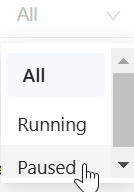
Filter deal by Paused
- The page display a list of paused deals.

Show all paused deals
- Select the specific paused deal you wish to run.

Select specific paused deal
- In the Actions column, click the
 icon .
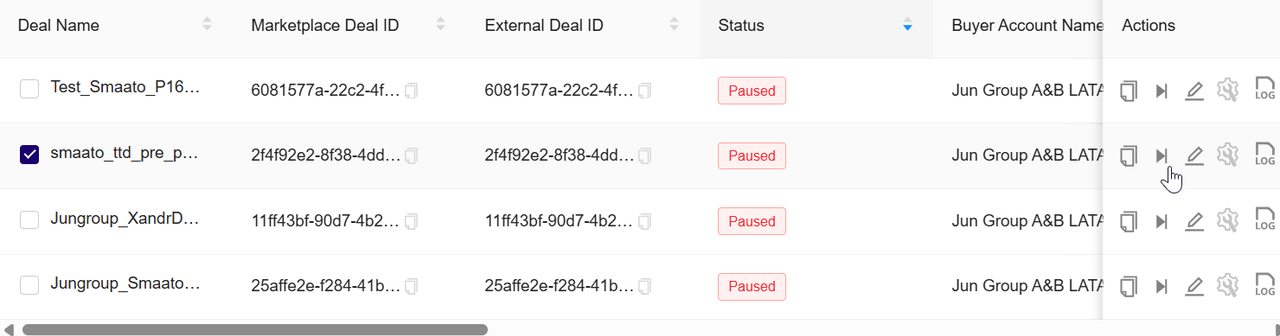
To start the paused deal
- In the confirmation dialog, click OK to run the selected deal. To discard the action, click Cancel.

Confirmation to start deal
- After confirmation, the selected deal’s status will change from Paused to Running.

Deal status changes to Running
Running Multiple Deals
To run multiple deals, follow these steps:
- From the Deal Filter dropdown, click Paused.

Filter your deal by Paused
- The page displays deals with the Paused status.

View deals with Paused status
- Select the deals that you want to run. To select all displayed paused deals, use Select All.

Select or deselect all paused deals
- In the Bulk Action toolbar, click the icon.

To run all the paused deals
- In the confirmation dialog, click OK to run the selected deals. To discard the action, click Cancel.

Confirm to run all selected deals
- After confirmation, the status of each selected deal changes from Paused to Running..

All selected deal status change to Running
Updated 3 months ago
Did this page help you?