

Android AdMob Integration
This guide provides comprehensive instructions for integrating the Smaato NextGen SDK into your Android application.
Attention:If you are a publisher that has a custom adapter or intends to have a custom integration, please contact our Sales Engineering team before you begin:
Note:Smaato’s AdMob adapter for Android also supports Google Ad Manager (GAM) integrations. Please ask your dedicated Smaato Account Manager for more information.
Integration Guide for Publishers with AdMob as a Primary Ad Server
(Android NextGen SDK version 23.2.1)
Assumptions
| You have an AdMob mediation integrated into your project. | If not, please see the AdMob documentation. |
| You have a Smaato SPX account and have created necessary ad spaces. | If not, please see our SPX documentation. |
Note:To avoid any unexpected behaviors in case if you create an instance of AdMob’s AdView manually, but not via xml, it is important to pass only Activity’s Context into AdView’s constructor
Important Details About GDPR
As a publisher, you should integrate a Consent Management Platform (CMP) and request for vendor and purpose consents as outlined in IAB Europe’s Mobile In-App CMP API v1.0: Transparency & Consent Framework or IAB Tech Lab - CMP API v2.
You can find a reference implementation of a web-based CMP and the corresponding native wrappers here in the IAB’s GDPR-Transparency-and-Consent-Framework.
You can find a reference implementation how is a CMP used in-app here in the IAB's Consent Management Platform API.
If you are embedding your own custom CMP, the collected end-user consent information needs to be stored in SharedPreferences using the following keys:
Transparency and Consent Framework v2 :
| Key | Type | Description |
|---|---|---|
IABTCF_gdprApplies | NSNumber | "1" = Subject to GDPR; "0" = Not subject to GDPR; "-1" or unset = Undetermined (default before initialization) |
IABTCF_TCString | NSNumber | Base64-encoded consent string as defined in IAB Tech Lab - Consent string and vendor list formats v2 |
Important Note:If the key IABTCF_gdprApplies is set to “1”, then you as a publisher need to make sure the key IABTCF_TCString contains a valid consent string (user was asked to provide consent before serving the ad). Otherwise, such ad requests will be dropped on the server-side without a return. If the key IABTCF_gdprApplies is set to 0, then you do not need to set key IABTCF_TCString.
Sample of GDPR Saving in SharedPreferences
import android.content.SharedPreferences;
import android.preference.PreferenceManager;

...
// User is not subject to GDPR
SharedPreferences sharedPref = PreferenceManager.getDefaultSharedPreferences(context_here);
SharedPreferences.Editor editor = sharedPref.edit();
editor.putString("IABTCF_gdprApplies", 0);
editor.commit();
// Use this example above to set values for the rest of the GDPR keys
Important Details About CCPA
The California Consumer Privacy Act (CCPA) was created to provide California consumers with greater transparency and control over their personal information. In many ways, the CCPA is a first of its kind regulation in the United States that seeks to create broad privacy and data protection rules that apply to all industries doing business in the jurisdiction of California, rather than focusing on a single sector or specific data collection and use practices.
For more information about the CCPA regulation, please check out the Smaato FAQ. You can also review the IAB’s U.S. Privacy String documentation.
For Publishers with California- Based Users
As a publisher, you need to make sure to request consent from California-based users (to give or refuse consent / to opt-out or opt-in ) about private data transfer. This answer should be saved in SharedPreferences with key “IABUSPrivacy_String” in the US Privacy String format (CCPA Opt-Out Storage Format).
The Smaato NextGen SDK reads this value in the key “IABUSPrivacy_String” if it exists and uses this as an optional parameter for all ad requests. You can use SmaatoSdk#getUsPrivacyString method to get a value which is currently stored under the "IABUSPrivacy_String" key. Note that default value is an empty string.
Sample of US Privacy String Saving in SharedPreferences
SharedPreferences sharedPref = PreferenceManager.getDefaultSharedPreferences(context)
SharedPreferences.Editor editor = sharedPref.edit();
editor.putString("IABUSPrivacy_String", "iab string");
editor.commit();
Important Note:About Fullscreen AdspacesNextGen SDK reads that value by key "IABUSPrivacy_String" if it exists and uses it as optional parameter for all ad requests.
Currently, only the Interstitial Multi-Ad Format is compatible for Fullscreen Adspaces with Smaato NextGen SDK. In order to monetize your fullscreen Adspaces in SPX with Smaato NextGen SDK, you need to select the option for Interstitial (Display & Video). All other Fullscreen options will not work at this time.
Please check if the Interstitial (Display & Video) feature is enabled in your SPX account. If you do not see the option for Interstitial (Display & Video) in the Ad Format dropdown, please contact your Smaato Account Manager to enable this.
-
When creating your Fullscreen Adspaces in SPX, choose the Interstitial (Display & video) option as the Ad format. (see Figure 1)
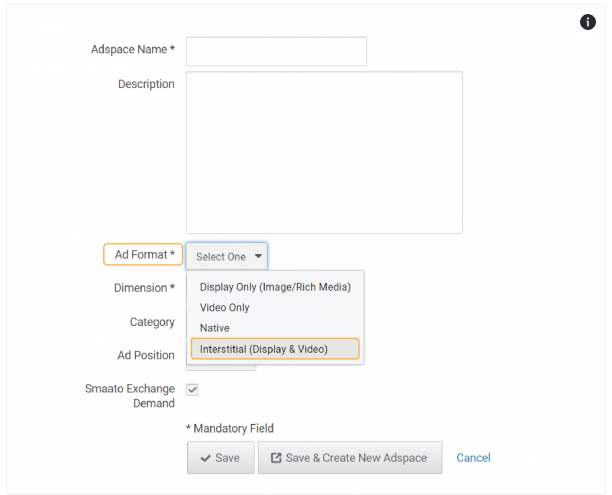
Figure 1: Choose Ad Format
-
For the Creative Type you will have three options to choose from (see Figure 2):
- Display Only for Rich Media Ads.
- Video Only for Video Ads.
- Display and Video will support either Rich Media or Video Ads.
Ad Format dropdown selection
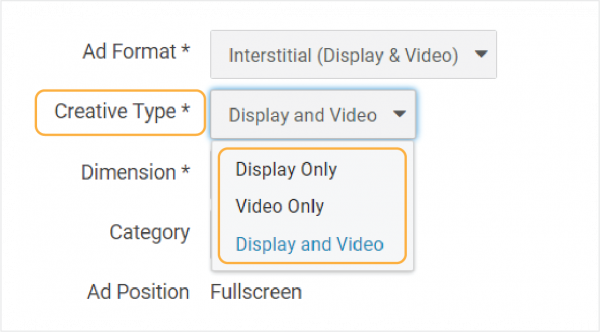
Figure 2: Choose Display and Video option
Ads for Testing Purposes
Note:All AdSpaces can be used on both Android and iOS platforms and do not require any SPX changes. It is mandatory to include the following Publisher ID for testing purposes. You will also need to use the Adspace IDs provided in the table below.
Please Also Note: These IDs must be replaced with your real publisher ID and Adspace ID/s before publishing the app to the stores, you will need to re-compile your app for this purpose.
Publisher ID: 1100042525
| Adspace ID | Type | Description |
|---|---|---|
| 130626424 | Rich Media | Banner / Med-rect / Leaderboard / Skyscraper |
| 130635694 | Static Image | Banner / Med-rect / Leaderboard / Skyscraper |
| 130635706 | MRAID | Banner / Med-rect / Leaderboard / Skyscraper |
| 130626426 | Rich Media / Video | Interstitial (Video with an end-card + Rich Media Interstitial for 320×480, 480×320, 1024×768 & 768×1024) |
| 130626427 | Video | Skippable Video |
| 130626428 | Rewarded | Rewarded Video |
| 130635048 | Rewarded | Rewarded Video without an end-card |
Demo App for Sample Integration
Download latest Demo App Apk from here.
AdMob Dashboard Setup
- Go to the AdMob Dashboard. – https://apps.admob.com/v2/mediation/groups/list
- Click on Create Mediation Group.
- Select your Ad format.
- Your options are Banner, Interstitial, and Rewarded Video.
- In the next tab, select your desired parameter settings.
- For the Add Ad unit option under Ad unit, select the Ad unit that needs to be targeted with the mediation.
- Under Ad sources, click on ADD CUSTOM EVENT.
- Then provide a Label and your desired eCPM.
- Under Configure Ad units, provide the class name details:
- For Banner:
com.smaato.sdk.adapters.admob.banner.SMAAdMobSmaatoBannerAdapter - For Interstitial:
com.smaato.sdk.adapters.admob.interstitial.SMAAdMobSmaatoInterstitialAdapter - Rewarded Video:
com.smaato.sdk.adapters.admob.rewarded.SMAAdMobSmaatoRewardedVideoAdapter - Native:
com.smaato.sdk.adapters.admob.nativead.SMAAdMobSmaatoNativeAdapter
- For Banner:
- Pass parameter for the SPX Adspace ID:
-
For SDK versions below v23.1.0, use the
adSpaceIdparameter:adSpaceId=<YOUR_SPX_ADSPACE_ID>Example:
adSpaceId=133149964 -
Starting with SDK v23.1.0, use both the
adSpaceIdandpublisher_v2parameters:adSpaceId=<YOUR_SPX_ADSPACE_ID>&publisher_v2=<PUBLISHER_ID_v2>Example:
adSpaceId=133149964&publisher_v2=aavvccddjdhdklsjd
-
Note:Starting with SDK v23.1.0 or higher, You must use the new
publisher_v2credential. Please contact your dedicated Account Manager to request this ID. This value should be passed as thepublisherIdparameter in theinitAPI.
SDK Integration
Configure your Android project
Add the following repository setup to your project’s main build.gradle file:
allprojects {
    repositories {
        google()
        jcenter()
        maven {
            url "<https://s3.amazonaws.com/smaato-sdk-releases/">
        }
    }
}
Set the compile options to Java 8, (i.e. place the following line into your application module build.gradle file):
android {
    compileOptions {
        sourceCompatibility JavaVersion.VERSION_1_8
        targetCompatibility JavaVersion.VERSION_1_8
    }
}Integration options
Version 23.1.0 and onwards supports AdMob/GAM version 25.0.0 or above.
Due to the modular SDK structure, you can select the integration option that matches your required ad format.
Here are some configuration examples, which should be added into your build.gradle
Banner (with Rich Media support) build.gradle
implementation 'com.smaato.android.sdk:admob-banner-adapter:23.2.1'Interstitial (with Video & Rich Media support) build.gradle
implementation 'com.smaato.android.sdk:admob-interstitial-adapter:23.2.1'implementation 'com.smaato.android.sdk:admob-interstitial-adapter:23.2.1'
{
exclude module: "module-video"
}implementation 'com.smaato.android.sdk:admob-interstitial-adapter:23.2.1'
{
exclude module: "module-richmedia"
}Rewarded Video build.gradle
implementation 'com.smaato.android.sdk:admob-rewarded-video-adapter:23.2.1'Native build.gradle
implementation 'com.smaato.android.sdk:admob-native-adapter:23.2.1'Handling onDestroy for Ads in GAM version 20.3 onwards :
As Google Ad Manager and AdMob has removed support for destroying Ads by overriding the onDestory() callback hence we have introduced our own method to handle that part for publishers – SMAAdMobAdapter.onDestroy()
This needs to be called in onDestroy of the activity containing the Ad.
Example given below :
public override fun onDestroy() {
    super.onDestroy()
    SMAAdMobAdapter.onDestroy()
}
Note:Starting with SDK v23.2.0, there is a change in the AdMob adapter variant and the AdMob version used in your application.
- SDK v23.2.0 and higher: You can use the
admob-banner-adaptervariant with AdMob v25.0.0 or above.- Versions up to SDK v23.1.0: You can use the
admob-banner-adapter-20-3variant with AdMob versions below v25.0.0.
Permissions
Add the following permissions to your application AndroidManifest.xml file:
Mandatory permissions:
<uses-permission android:name="android.permission.INTERNET" />
<uses-permission android:name="android.permission.ACCESS_NETWORK_STATE" />
Optional permissions:
<uses-permission android:name="android.permission.ACCESS_COARSE_LOCATION" />If your application targets Android 5.0 (API level 21) or higher, then add the following line to your application AndroidManifest.xml file:
<uses-feature android:name="android.hardware.location.network" />Optional Configuration:
i) If your application targets Android 9 Pie (API level 28) or higher, in order to send HTTP requests (using the unencrypted HTTP protocol instead of HTTPS, so that more Ads can be shown), then you need to configure the networkSecurityConfig attribute in the application tag in AndroidManifest.xml:
android:networkSecurityConfig="@xml/network_security_config"ii) Now create the network_security_config.xml in the XML resource directory with:
android:networkSecurityConfig="@xml/network_security_config"
<code>?xml version="1 0" encoding="utf-8"?<network-security-config>
    <base-config cleartextTrafficPermitted="true" />
</network-security-config>
For more details regarding the Network security configuration, please see the official Google documentation: https://developer.android.com/training/articles/security-config
Proguard Configuration
If you’re using Proguard in your project, please add the following lines to your Proguard config file, as per your requirements:
keep public class com.smaato.sdk.** { \*; }
    -keep public interface com.smaato.sdk.** { \*; }
SDK initialization
Add to your Application.OnCreate() method the following line, which initializes the Smaato SDK.
SmaatoSdk.init(this, config, publisher_v2);Optional configuration You can configure additional parameters for the SDK by passing the Config parameter to the init method.
Config config = Config.builder()
        .setLogLevel(LogLevel.INFO)
        .setHttpsOnly(false)
        .build();
SmaatoSdk.init(this, config, publisher_v2);
Additionally, it is recommended to configure the SDK with user information. This is an optional step and can be implemented at a later time using the following configurations:
SmaatoSdk.setKeywords(...);
SmaatoSdk.setSearchQuery(...);
SmaatoSdk.setGender(...);
SmaatoSdk.setAge(...);
SmaatoSdk.setLatLng(...);
SmaatoSdk.setRegion(...);
SmaatoSdk.setLanguage(...);
SmaatoSdk.setZip(...);
SmaatoSdk.setCoppa(...);
SmaatoSdk.setGPSEnabled(...);
SmaatoSdk.setWatermarkEnabled(...);
GPSEnabled flag allows to get user's location by Smaato SDK automatically and put it inside ad requests.
Supported Callbacks
Banners
| Callback Message | Reason |
|---|---|
onBannerLoaded | This will be invoked when an advertisement is successfully received. |
onBannerFailed | This will be invoked when an advertisement request fails or the ad’s time-to-live has expired. |
onBannerClicked | This will be invoked when a click event is registered for an advertisement. |
onBannerImpression | This will be invoked when an impression occurs. |
Interstitials
| Callback | Description |
|---|---|
onInterstitialLoaded | This will be invoked when an advertisement is successfully received. |
onInterstitialFailed | This will be invoked when there was an error during loading/showing an ad or the ad’s time-to-live has expired. |
onInterstitialShown | This will be invoked when a Fullscreen Interstitial Ad is opened. |
onInterstitialDismissed | This will be invoked when a Fullscreen Interstitial Ad is closed. |
onInterstitialClicked | This will be invoked when a user clicks on an ad. |
onInterstitialImpression | This will be invoked when an impression occurs. |
Rewarded Video
| Callback Message | Reason |
|---|---|
onRewardedVideoLoadSuccess | This will be invoked when the Rewarded Video Ad is successfully received. |
onRewardedVideoLoadFailure | This will be invoked when there was an error during loading/showing an ad or the Rewarded Video Ad’s time-to-live has expired. |
onRewardedVideoPlaybackError | This will be invoked when there is an error during the Rewarded Video Ad playback. |
onRewardedVideoClosed | This will be invoked when the Rewarded Video Ad is closed. |
onRewardedVideoClicked | This will be invoked when the Rewarded Video Ad is clicked. |
onRewardedVideoStarted | This will be invoked when the Rewarded Video Ad starts playing. |
onRewardedVideoCompleted | This will be invoked when the Rewarded Video Ad is completed and the user should be rewarded. |
Updated about 2 months ago