

Device signals targeting
Add Device signals targeting Workflow
This section guides you through the workflow for setting the Add Device signals targeting parameters in the Deal Portal.
For the Add Device signals targeting field details, see the Data Dictionary for Add Device signals targeting section.
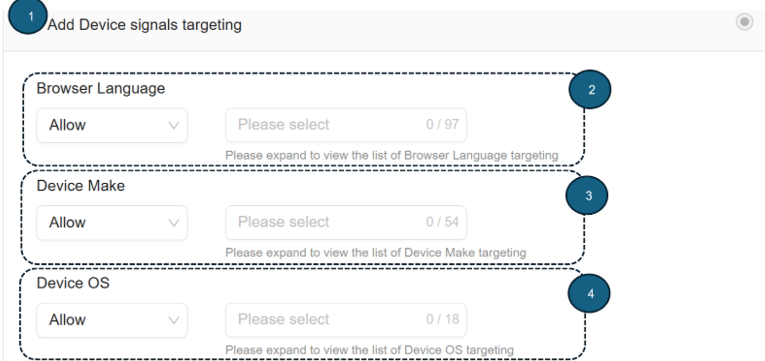
Follow these steps to set the options for Add Device Signals Targeting parameters:
1. Add Device signals targeting
- Click to expand the Add Device signals targeting section.
This section allows you to target your deal based on:- Browser language
- Device make
- Device OS
2. Browser Language*
-
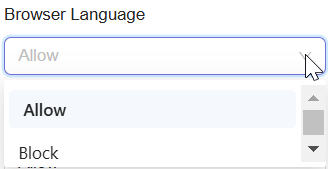
From the Browser Language dropdown, select either the Allow or Block option.
-
Allow: Lets you permit selected browser languages to display your ads.
-
Block: Restricts selected browser languages from displaying your ads.
-
-
From the dropdown list, select one or more Browser Language options.
Your deal will pass downstream to DSPs only for requests from devices using the selected languages.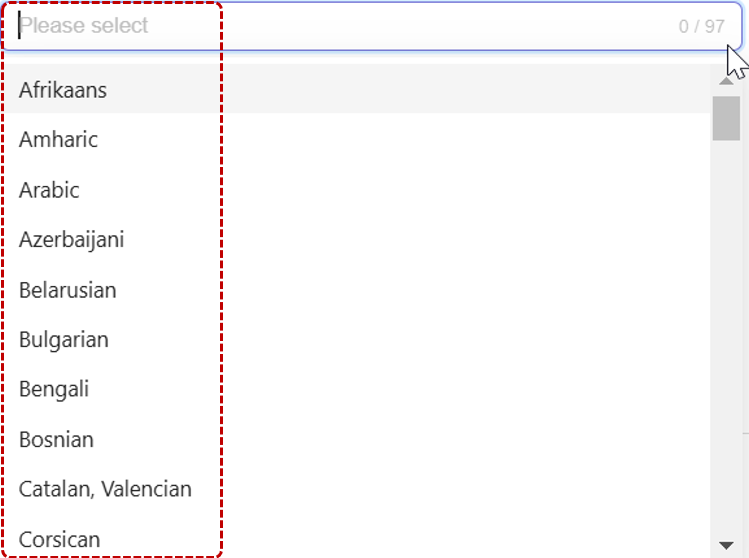
-
After selecting, your chosen Browser Language option will be automatically added and saved to your deal.
-
To remove selections:
-
Click x next to a selected option to remove it.
-
Click Remove All (X) at the bottom of the selection box to clear all.

-
3. Device Make*
-
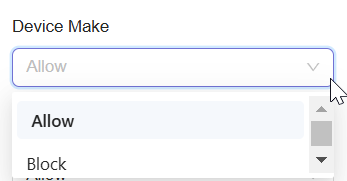
From the Device Make dropdown, select either the Allow or Block option.
- Allow: Lets you permit selected device makes for your ad campaign.
- Block: Restricts selected device makes from your ad campaign.
-
From the dropdown list, select one or more Device Make options.
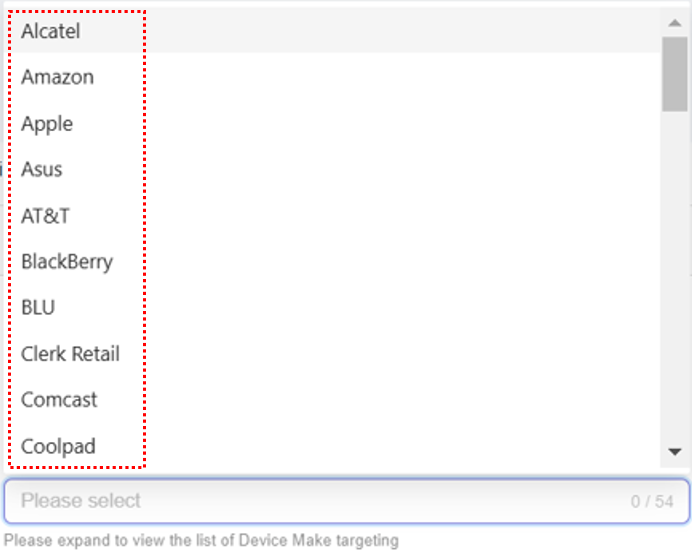
-
After selecting, your chosen Device Make options will be automatically added and saved to your deal.
-
To remove selections:
- Click x next to a selected option.
- Click Remove All (X) at the bottom of the selection box to clear all.

4. Device OS
-
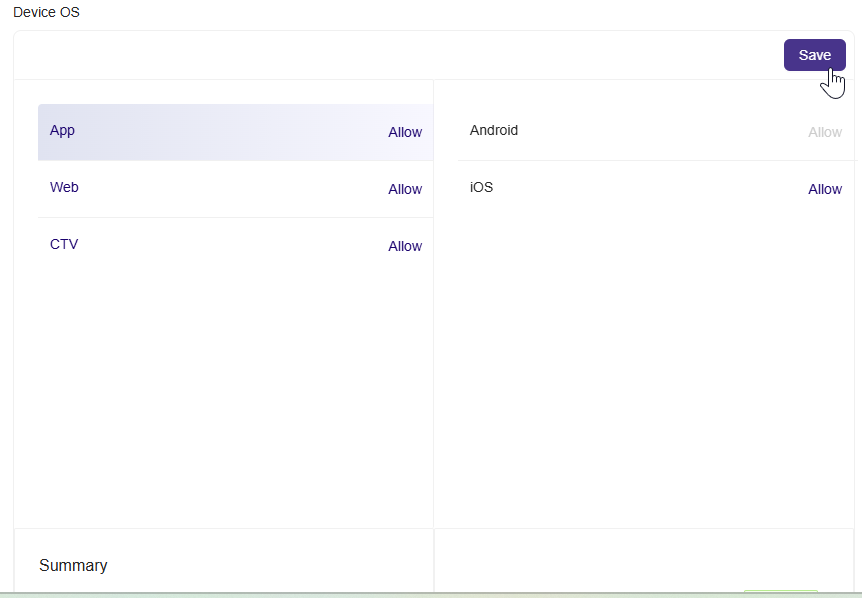
In the Device OS section, select a platform type (App, Web, or CTV) from the left panel.
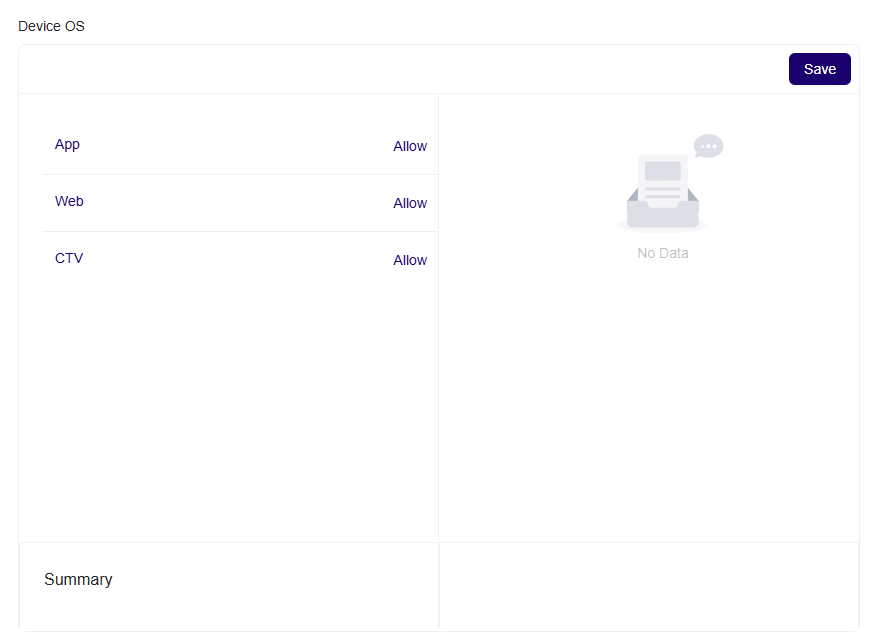
-
Click Allow next to the platform type.
-
By default, this includes all operating systems under the selected platform (for example, Android and iOS for App).
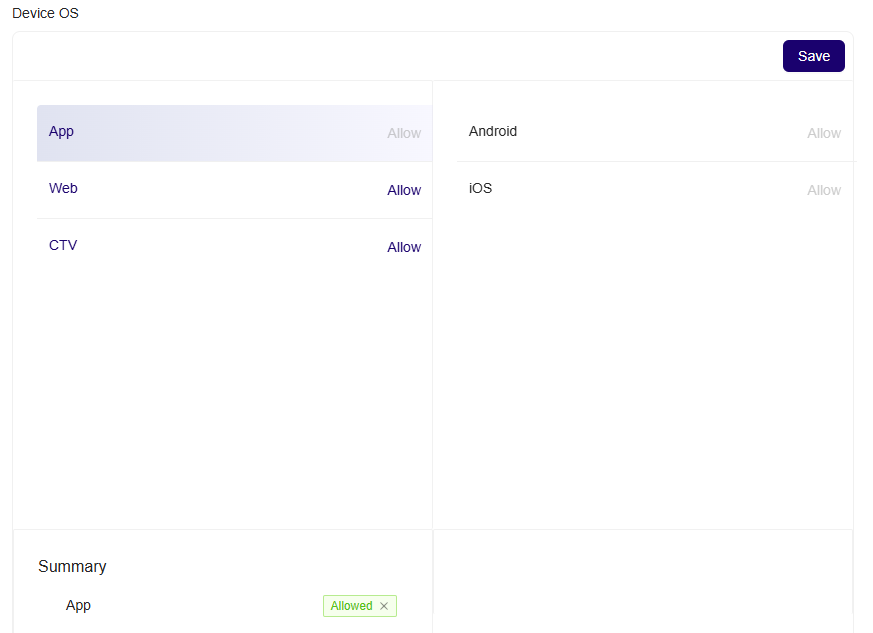
-
-
The platform, along with all its OS, will appear in the Summary section.
-
If you want to restrict targeting:
- Click Allow next to the platform type.
- A list of available operating systems (e.g., Android, iOS) appears.
- Select the OS you want to specifically allow.
- Once chosen, only the selected OS is targeted, and the unselected OS will be excluded.
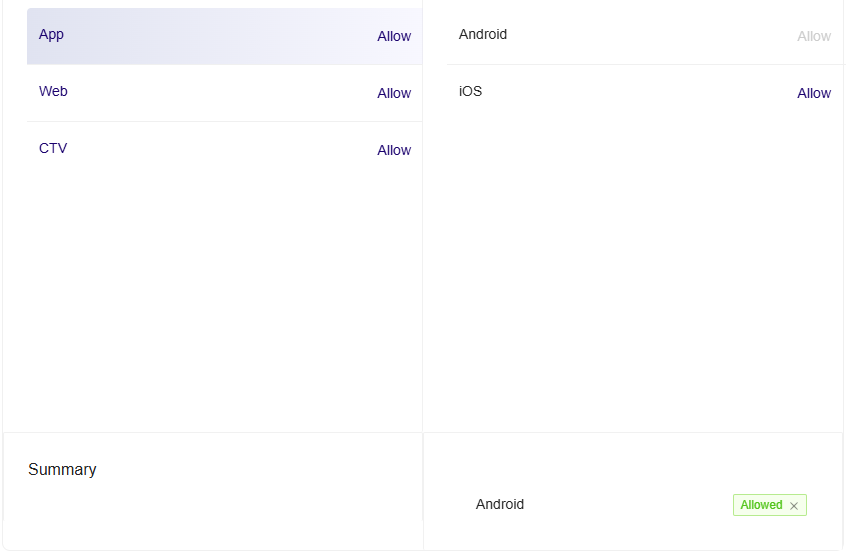
-
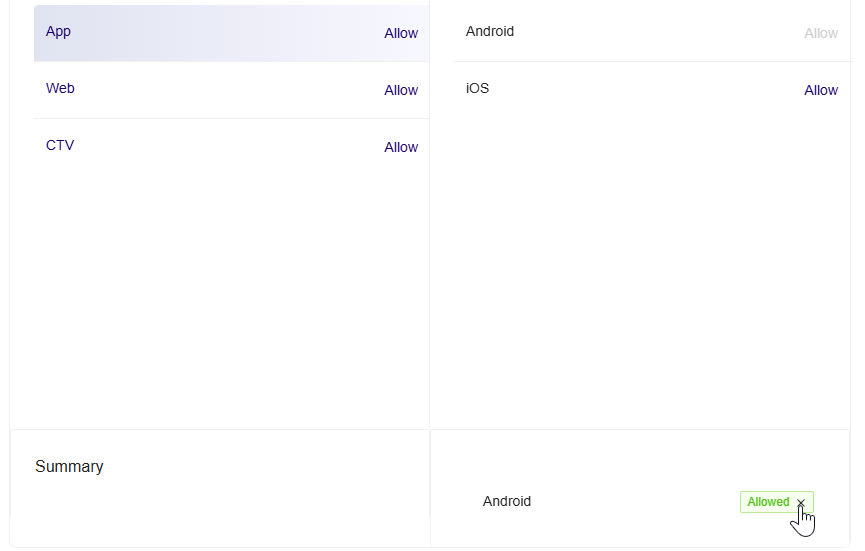
Your selected OS will appear in the Summary section.
-
Click Save to confirm.
-
To remove selections:
-
To remove an OS, click the Allowed x next to it in the Summary.
-
To reset and include all OS options again, remove all selected OS entries.
-
ImportantThe targeting dimensions marked with an asterisk (*) will be hidden from the Deal Portal user interface for new deals starting June 19, 2025. Deals created prior to this date using these targeting will continue to run, but they will not be available for Mobile In-App traffic.
As a result, these attributes will not be available or targetable for new deals in the Deal Portal user interface.
Updated about 1 month ago