

Change Log
The Change Log functionality in the Deal Portal allows you to track and audit any modification made to the deal over time. You can use this feature to view changes such as add and updates to status, targeting parameters, or configuration fields.
Follow these steps to retrieve the Change Log for a specific deal:
-
Navigate to the Deal Portal.
-
After login, the Dashboard page appears by default.

Dashboard Page
- In the Actions column of the corresponding deal row, click the
 icon.
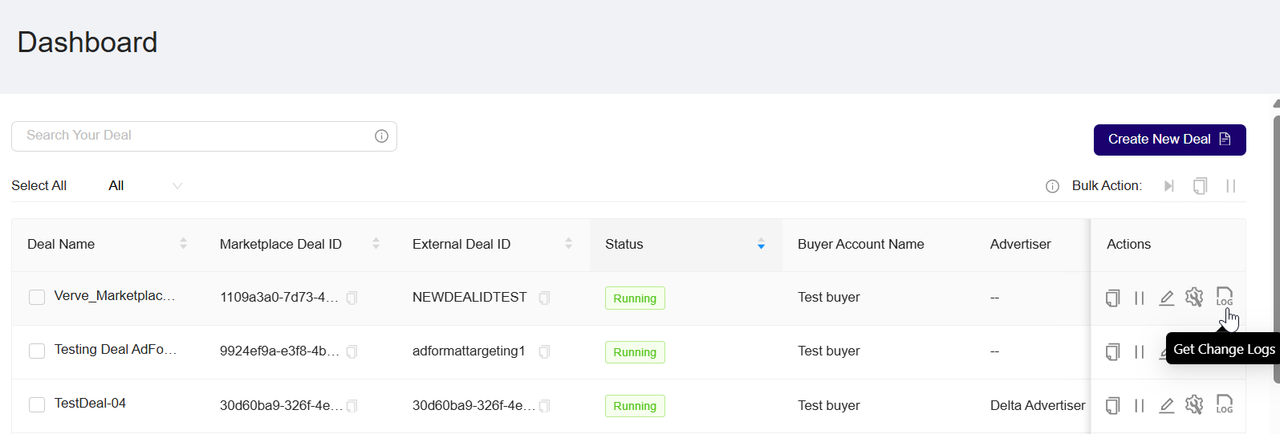
Locate the deal
- A confirmation dialog will appear prompting you to send the change log to your registered email.

Open the Change Log
- Click Confirm to receive a copy of the change log as an Excel file in your inbox.

Confirm the request
- Within a few moments, You will receive an email containing a button to download the change log file in excel format.

Check your email
- This Excel file includes details such as the Action ID, the field that was changed, the action type (Add/Update), previous and new values, timestamps, and the name of the person who made the change.

Preview the change log Excel file
Note: Download Rate LimitingTo ensure system stability and prevent excessive server load, download requests for change logs are rate-limited:
- Maximum 1 download per minute
- Maximum 10 download per hour
If these limits are exceeded, a message will appear (for example, "You can only download logs once per minute. Please wait a moment and try again").
Updated 3 months ago