

Boost your Deal’s performance with KPI targeting
Boost Deal's performance with KPI targeting Workflow
This section guides you through the workflow for setting the Deal's Performance Targeting parameters in the Deal Portal.
For the field details, see the Data Dictionary for Boost Deal's performance with KPI targeting.
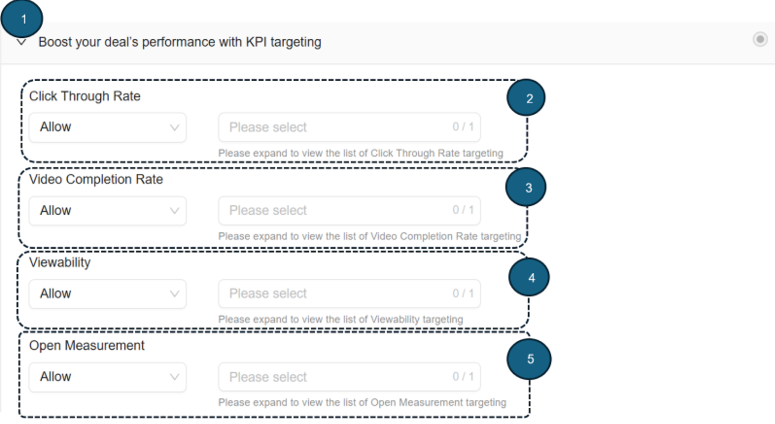
Follow these instructions for setting the Boost your Deal's performance with KPI targeting parameters:
1. Boost your Deal's performance with KPI targeting
- Click to expand the Boost your Deal's performance with KPI targeting section.
This section allows you to target your deal based on:- Click Through Rate
- Video Completion Rate
- Viewability
- Open Measurement
2. Click Through Rate*
-
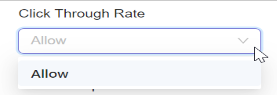
From the Click Through Rate dropdown menu, select the Allow option.
-
Allow: Lets you permit selected click-through rate percentages to display your ads.
-
-
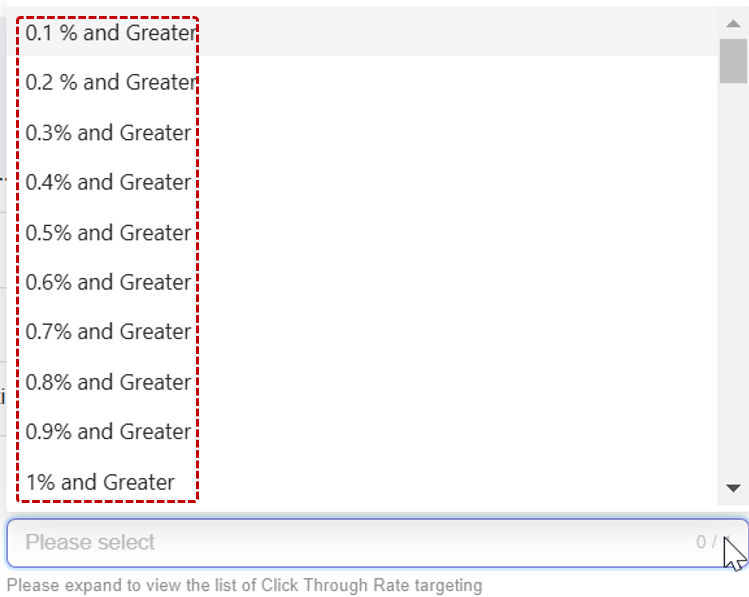
From the dropdown list, select one Click Through Rate option.
-
After selecting, your chosen option will automatically be added and saved to your deal.
For example: If you select 0.1% and Greater, your deal will block lower CTR values. -
To remove:
- Click x next to a selected option.
- Click Remove All (X) to clear all options.

3. Video Completion Rate*
-
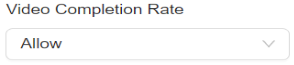
From the Video Completion Rate dropdown menu, select the Allow option.
-
Allow: Enables the display of the selected Video Completion Rate percentage for your ad campaign.
-
-
From the dropdown list, select one Video Completion Rate option.
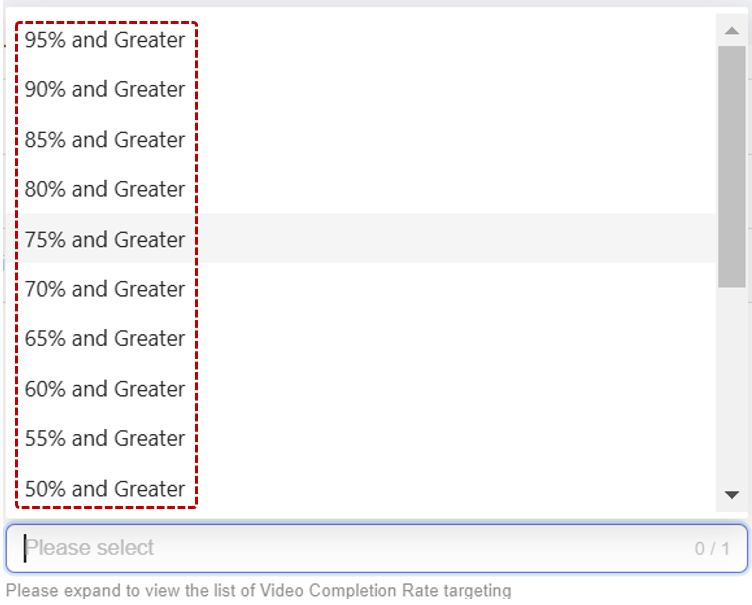
-
After selecting, your option will be automatically added and saved.
-
To remove:
- Click x next to a selected option.
- Click Remove All (X) to clear all.

4. Viewability*
-
From the Viewability dropdown menu, select the Allow option (default).
-
Allow: Enables ad display viewability tracking, expressed as a percentage of how often your ad is seen.
-
-
From the dropdown list, select one Viewability option.
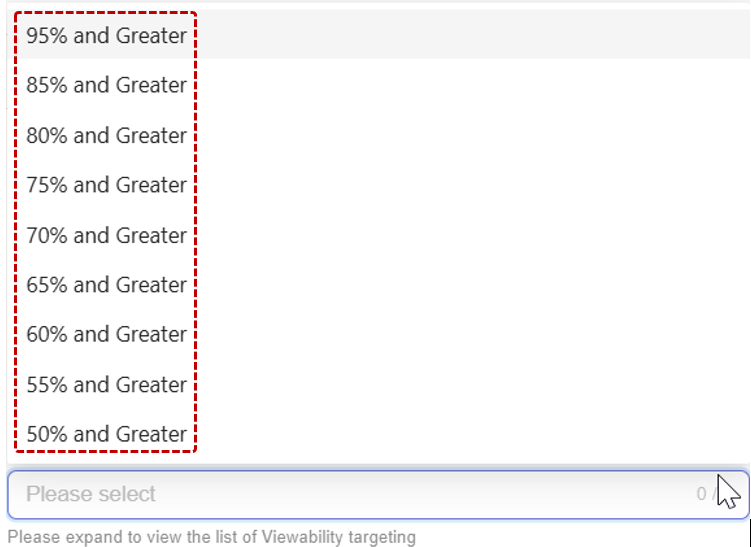
-
After selecting, your option will automatically be added and saved to your deal.
-
To remove:
- Click x next to a selected option.
- Click Remove All (X) to clear all.

5. Open Measurement
-
From the Open Measurement dropdown menu, select Allow or Block (default).
-
Allow: Enables selected Open Measurement settings to track and display ad campaign performance.
-
-
From the dropdown list, select one Open Measurement option.

-
After selecting, your option will automatically be added and saved to your deal.
-
To remove:
-
Click x next to a selected option.

-
NoteThe targeting dimensions marked with an asterisk (*) will be hidden from the Deal Portal user interface for new deals starting June 19, 2025. Deals created prior to this date will continue to run, but these options will not be available for Mobile In-App traffic.
The targeting is currently hidden while we work to improve results.
Updated about 1 month ago