

Creating a Deal
Table of Contents
1. Overview
The Deal Portal allows you to create a new deal for an ad campaign. Use Deal Settings to enter the core deal details, Price Settings to configure pricing, and Ad Experience to enable an experience thought to improve performance and configure call-to-action (CTA) text for Video and Display ads.
2. Prerequisites
Before creating a deal, ensure that:
- You have a registered user account and buyer account. See Registering your User Account
- You are logged into the Deal Portal. See Logging into the Deal Portal
- You have permission to edit Ad Experience settings if you intend to configure them.
3. Accessing the Create Deal Page
To access the Create Deal page:
-
Navigate to the Deal Portal Dashboard.
-
Click Create New Deal.

Figure: Creating a new deal
The Create Deal page opens. The deal creation process includes three steps: Deal Setting, Targeting, and Summary.
4. Creating Deal Workflow
Complete the following sections on the Create Deal page:
4.1 Deal Settings Workflow
Deal Settings is the first section on the Create Deal page. The Deal Name and Select DSP fields are required and marked with an asterisk (*).
For field definitions, see the Data Dictionary for Deal Settings.
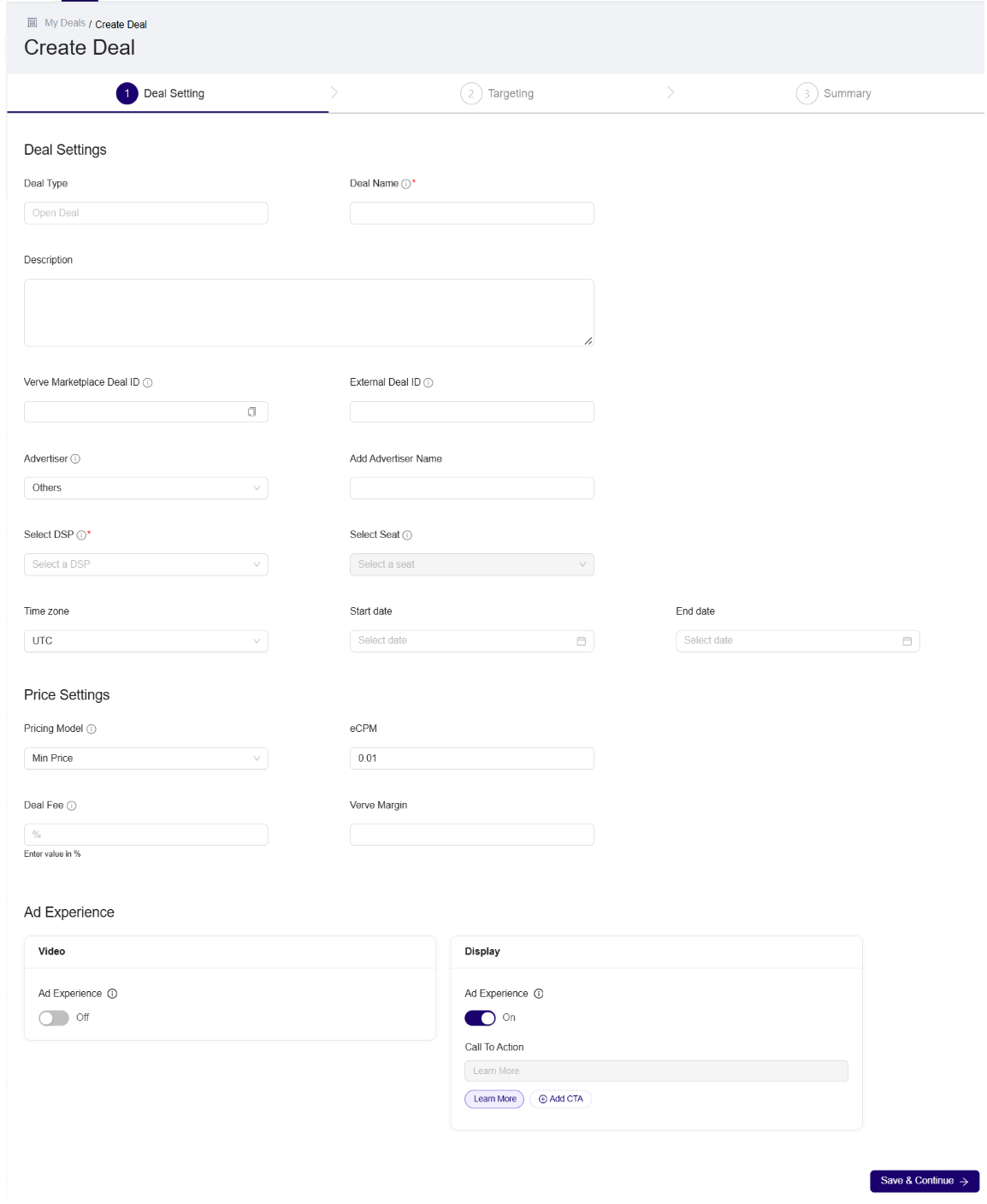
Figure: Deal Setting Required Fields
-
Deal Type
- The Deal Portal auto-populates the Deal Type dropdown with the Open Deal option by default. More deal types will be available in the future.
-
Deal Name*
- Enter a unique name for your deal in the Deal Name field.
-
Description (Optional)
- Enter a description of your deal.
-
Verve Marketplace Deal ID
- The system automatically generates the Verve Marketplace Deal ID. You cannot edit this value.
-
External Deal ID (Optional)
- Enter an external deal ID, if applicable.
-
Advertiser (Optional)
- Select the advertiser associated with the deal from the Advertiser dropdown.
-
Add Advertiser Name (Optional)
- If your advertiser is not listed, select Others from the Advertiser dropdown and enter the name in Add Advertiser Name.
-
Select DSP*
-
Select the Demand Side Platform associated with the account from the Select DSP dropdown.
-
Available DSPs are listed alphabetically.
-
-
Select Seat (Optional)
- Select a seat associated with the selected DSP and buyer from the Select Seat dropdown.
- Available seats are listed alphabetically.
-
Time zone (Optional)
- Click the Time zone dropdown and select the time zone for your deal.
- Search for a time zone or scroll through the available options.
-
Start date (Optional)
-
Use the date picker to select the start date.
-
You can select the current date or a future date, but not a past date.
-
You can specify a start date without an end date.
-
If you do not select a start date, the system defaults to the date the deal is set live.
-
-
End date (Optional)
- Use the date picker to select the end date and specify the time in 24-hour format.
- You can select the current date or a future date, but not a past date.
- You can specify an end date without a start date.
4.2 Price Settings Workflow
Use Price Settings to configure pricing for your deal. For field definitions, see the Data Dictionary for Price Settings.
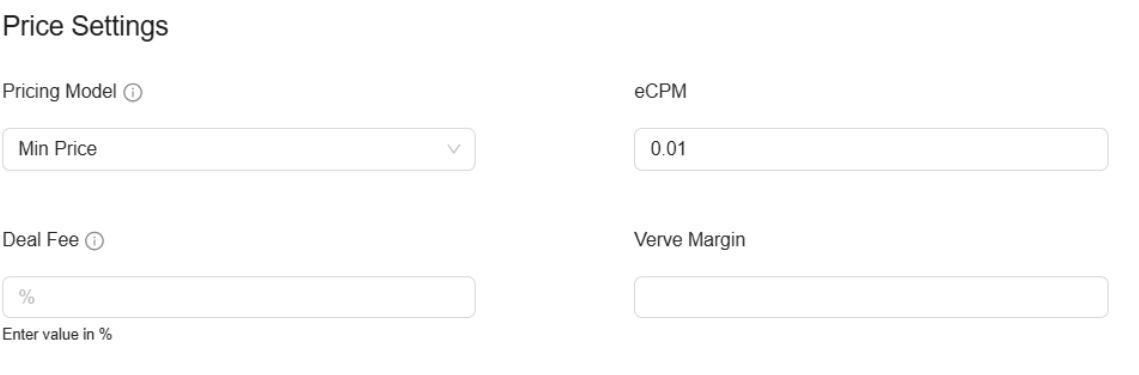
Figure: Price Settings workflow
-
Pricing Model (Optional)
- Select one of the following options from the Pricing Model dropdown:
-
Min Price (Default)
-
Fixed Price
-
- Select one of the following options from the Pricing Model dropdown:
-
eCPM (Optional)
- Enter the eCPM value for the deal.
-
Deal Fee
- Enter the deal fee as a percentage, as indicated by Enter value in %.
-
Verve Margin
- Enter Verve’s internal margin for the deal as a percentage.
- The Verve margin is applied to the revenue that remains after the deal fee is deducted.
4.3 Ad Experience Workflow
Use Ad Experience to enable settings independently for Video and Display ads and configure call-to-action (CTA) text.
When enabled, the system identifies the ad format and applies remote configurations, such as skip timers, end cards, and clickable areas, to improve performance.
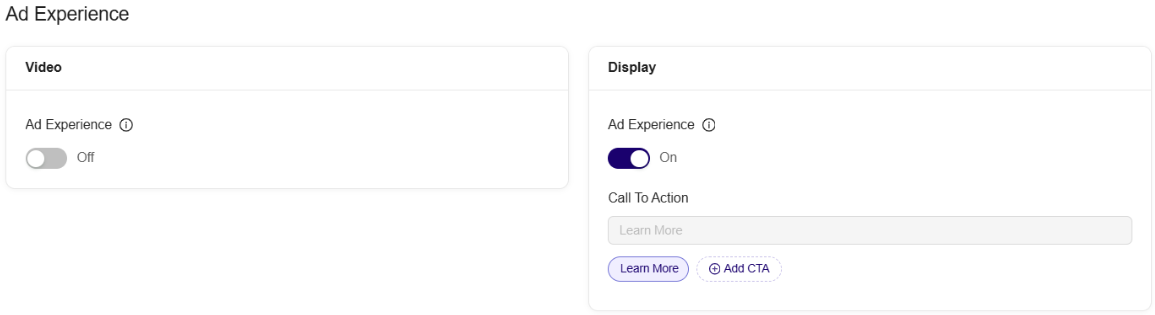
Figure: Ad Experience Workflow
4.3.1 Enable or disable Ad Experience
- In the Ad Experience section, locate the Video and Display panels.
- Set the Ad Experience toggle for each format:
- On: Apply the format-specific configuration to eligible ads.
- Off: Use the existing Performance/Brand behavior without applying the new format-specific configuration.
Note:The Video and Display Ad Experience toggles are On by default and operate independently. You can enable either format, enable both, or turn both off. For deals targeting both Video and Display, the system checks each incoming ad request and applies the configuration for that format.
4.3.2 Select an existing CTA phrase
Which CTA options you get depends on the ad type:
| Ad type | Custom CTA | What viewers see |
|---|---|---|
| Brand video | Not available | The default Learn More CTA on interstitial video |
| Performance video | Can be enabled or disabled | GET by default when enabled, or the phrase you select |
| Display | Not applicable | No CTA badge |
Note:A custom end card is possible for Brand video, Performance video and Display, provided the existing ad-server conditions are met.
To select a CTA phrase for Performance video:
- Locate the Call To Action controls in the Performance video settings.
- Make sure the custom CTA is enabled. The field shows the default text GET.
- To use a different phrase, click one of the available phrases below the field.
- Verify that the selected phrase appears in the Call To Action field.
4.3.3 Add a custom CTA phrase
- Under Video or Display, click Add CTA. The Add Call To Action dialog opens.
- Enter your CTA text, such as Click This. The text must:
- Contain no more than 20 characters.
- Not consist entirely of spaces.
- Not contain
<or>.
- Click Add. The dialog closes.
The new phrase appears below the Call To Action field and is selected automatically.
CTA defaults and limits
When creating an Ad Experience configuration, CTA text that is not provided defaults to Learn More.
Leading and trailing spaces are removed when the phrase is saved.
You can save up to 10 CTA phrases per format. Video and Display maintain separate phrase lists.
Within the same list, phrases that differ only in capitalization or surrounding spaces are treated as duplicates.
4.3.4 Verify Ad Experience settings
- On the Edit Deal page, locate the Ad Experience section.
- Verify that Video Ad Experience and Display Ad Experience match your selections:
trueindicates enabled, andfalseindicates disabled. - Confirm that Display Call To Action shows your selected CTA text.
4.4 Saving Deal Settings
Review your settings and ensure that you have completed the required Deal Name and Select DSP fields.
- Click Save & Continue to save your deal settings.
- The system redirects you to the Targeting section.
Updated 10 days ago