

Managing your Account Profile
Overview
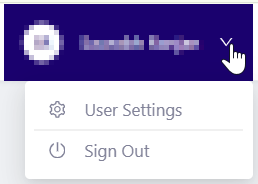
The Account Profile section provides quick access to user settings and actions associated with your Deal Portal account. To open the menu, select your name or profile icon in the upper-right corner.
When you hover over your user account, the following options are displayed:
-
User Settings – View and manage your account profile settings.
See User Settings. -
Sign Out – Securely log out of the Deal Portal.
User Settings
The User Settings page displays the personal information associated with your Deal Portal account. You can update your name and password from this page.
Access User Settings
- Sign in to the Deal Portal.
- Click your profile in the upper-right corner.
- Select User Settings.
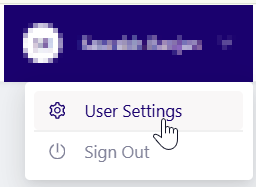
The User Settings page opens.
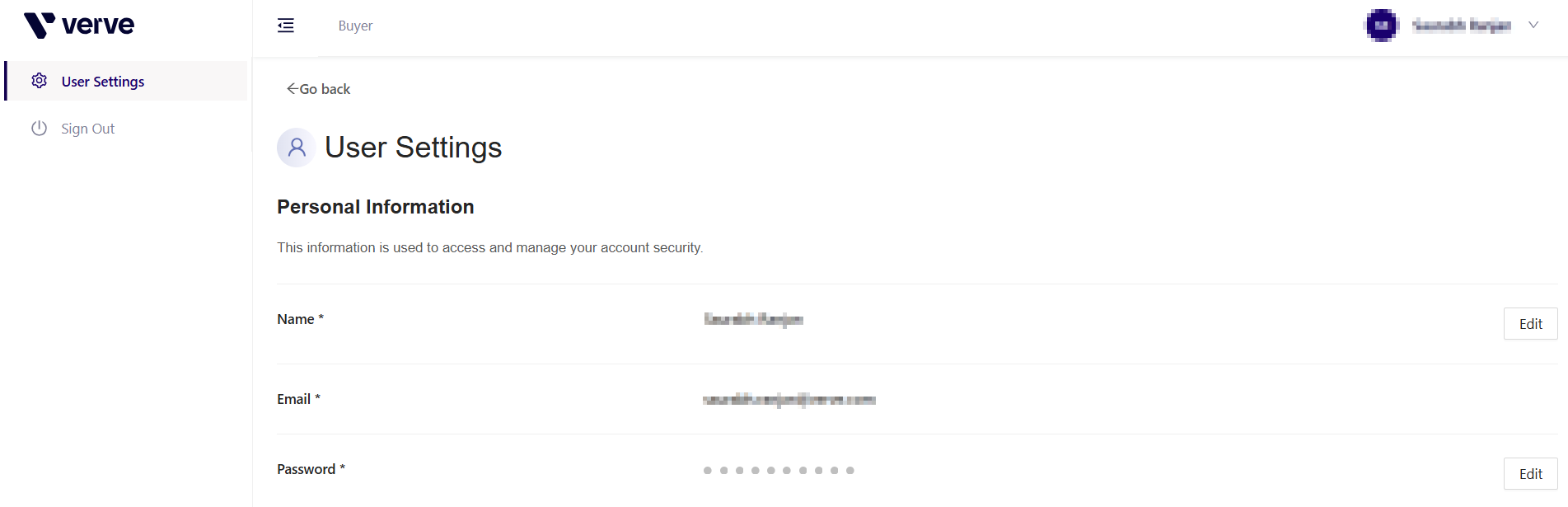
Account Information
The Personal Information section displays the following fields:
| Field | Description |
|---|---|
| Name | The name associated with your account. You can edit this value |
| The email address associated with your account | |
| Password | Your account password. You can change this value |
Update Your Name
-
In the Name field, select Edit.

-
Update your first name, last name, or both.
-
Select Save.

- Your updated name appears on the User Settings page.
- To discard your changes, select Cancel.
Update Password
- In the Password field, select Edit.
- Enter your current password
- Enter your new password.
- Enter the new password again to confirm it.
- Select Save.

- Your password is updated. Use the new password the next time you sign in.
- To discard your changes, select Cancel.
Sign Out
Sign out of the Deal Portal when you have finished using it to help prevent unauthorized access to your account.
-
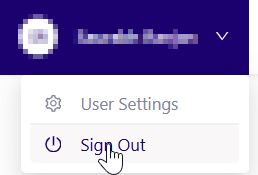
Select your name or profile icon in the upper-right or left side of the page.
-
Select Sign Out.
-
You are signed out and redirected to the sign-in page.
Updated about 1 month ago